← Odoo 20: all the new features
Odoo 20 · Projects & Field Service
Odoo 20 removes the Field Service app and merges its functions into Planning. The sales order feeds the schedule, automatic planning assigns technicians, travel fees are added to the order automatically, and the worksheet is completed directly within the job. In Project, margins get dedicated reports and a project can be created straight from the opportunity. In Timesheets, an assistant linked to workstation activity helps prepare time entries.
Contents: 15 feature sheets
- Field service jobs are now planned in Planning
- Automatic planning of jobs, by role and by priority
- A map view per technician, showing their jobs for the day
- Technicians' positions are shown on a real-time map
- Travel fees are added to the order automatically
- The customer's equipment and maintenance contract can be viewed from the job
- The worksheet is completed directly within the job
- A single job can involve several technicians
- A shift can be linked to a project task
- Actual and forecast margins in dedicated reports
- The customer can access the project without having to follow it
- Project roles assigned from a template
- A project can be created from the opportunity
- Workstation activity feeds timesheet suggestions (ActivityWatch)
- The timesheet assistant is configured with rules, duration thresholds and side activities
Field Service
Field service jobs are now planned in Planning
A separate “Field Service” app, built on Project and Timesheets. A service sold with the option “Create on Order: Task” generates, when the order is confirmed, a task in the “Field Service” project, to be planned and assigned to users.
The Field Service app no longer exists: its functions are merged into Planning. The technical module relies on Planning, the map view, geolocation and ratings, and no longer has its own icon. On the product, the “Plan Services” box is combined with a role and a worksheet. On confirmation, the order no longer shows a task but a “To Plan” button. This button opens the Planning Gantt, with the job in the “to plan” panel.


- Belgian use case
- A heating engineer sells 2 hours of boiler servicing to the Résidence Louise, in Ixelles. When the order is confirmed, the job waits in the team's schedule, with the customer's address. It is no longer an isolated task in a project.
- Source
- Odoo 20 release notes, Field Service section, “Field Service merged into Planning”. Official Odoo video, 0:34 ↗–1:40 and 3:06–3:29. See also: HR & Payroll, for the end of the Planning–Payroll integration.
- What Idealis brings
- Existing Field Service tasks and worksheets carried over during the migration (“Migration & Odoo 20” phase).
Automatic planning of jobs, by role and by priority
The Field Service task is planned and assigned by hand, in the Gantt “By User”, “By Project” or “By Location”.
The Actions › “Auto Plan” action assigns the job to a technician with the required role and leaves the shift in draft. The shift carries a priority (stars): according to the release notes, priority shifts are planned first, and customer locations are taken into account.


- Belgian use case
- On Monday morning, the planner at a Brussels installer runs automatic planning. The Résidence Louise servicing is assigned to the first available “heating” technician, with no manual intervention in the schedule.
- Source
- Odoo 20 release notes, Planning section, “Field Service: auto plan” and “Priority shifts”. Official Odoo video, 38:32 ↗–38:40 and 17:50–18:09.
A map view per technician, showing their jobs for the day
A map view of tasks (“Planning by Location”) with a “View in Google Maps” link. No grouping by technician.
The “Maps” menu offers “By Resource” and “Timeline”. Each technician has their own list of jobs and a starting point there. The shift has a “Navigate” button. According to the release notes, the route is calculated in ordered or optimised mode; this calculation requires a Mapbox access key.


- Belgian use case
- The technician sees today's jobs on the map of Brussels, in Ixelles then Etterbeek, and starts navigation from the shift.
- Source
- Odoo 20 release notes, Planning section, “Field Service: map view” and “Field Service: routing preferences”. Official Odoo video, 36:02 ↗–36:08.
Technicians' positions are shown on a real-time map
No tracking of technicians' positions in Field Service (no option in the settings).
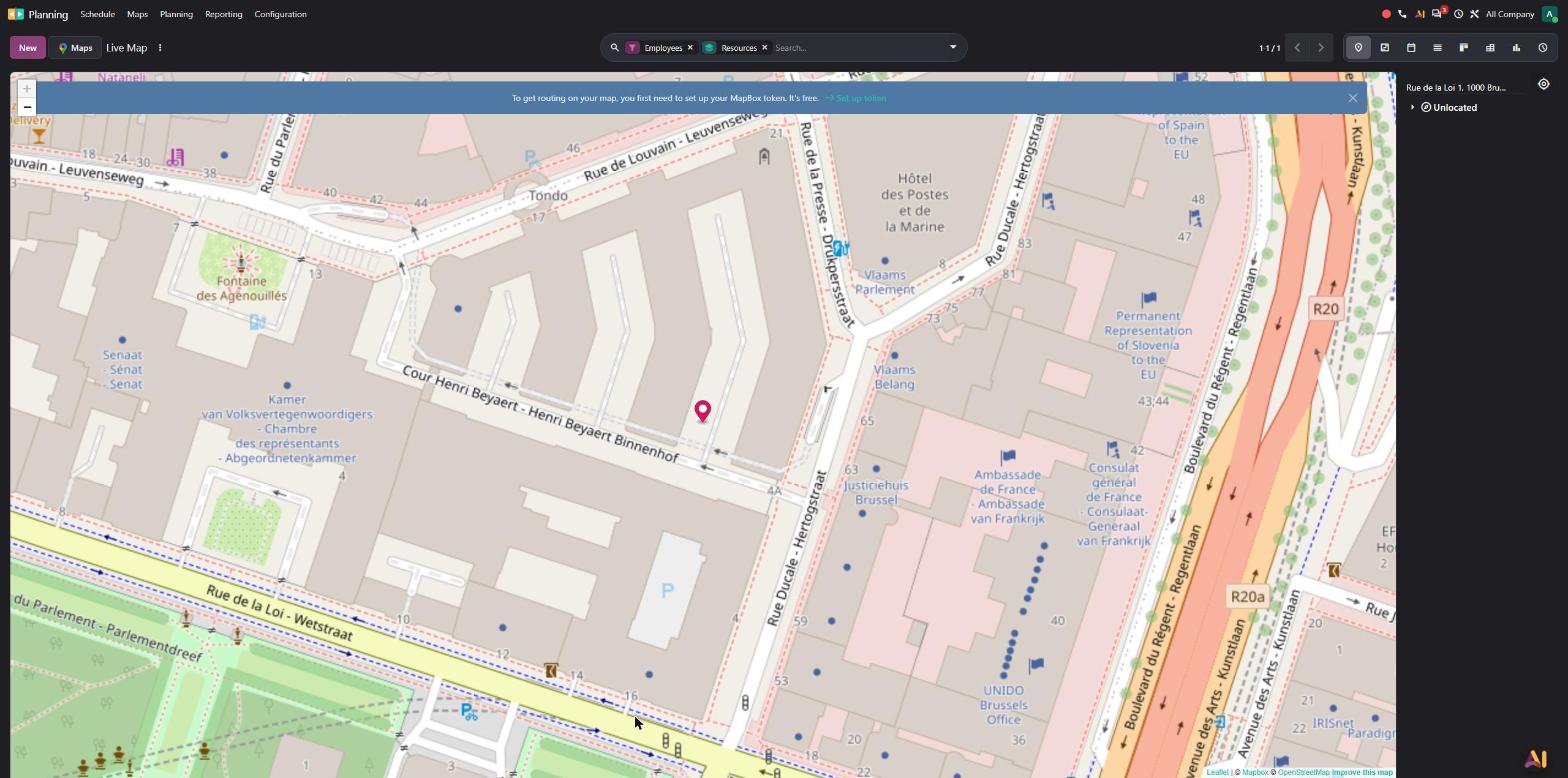
“Geolocation” option in the settings: tracking of technicians' positions during working hours and recording of their position at the start and end of the shift. According to the release notes, these positions are shown on a real-time map.


- Belgian use case
- A customer in Schaerbeek calls to ask where their repair technician is: the planner sees on the map that the technician is finishing a job in Evere.
- Source
- Odoo 20 release notes, Planning section, “Field Service: live map”. Official Odoo video, 14:42 ↗–15:09.
Travel fees are added to the order automatically
No travel fee option: travel is added manually, as a product, on the task or the order.
“Travel Fees” option: a flat fee (“Fixed Fee”) or an amount based on distance (“Fee per Distance”), with a dedicated product. When the job is finished, the line is added to the order automatically (chatter: “Extra line with Travel Fees”). The distance-based amount requires a Mapbox access key.


- Belgian use case
- A heat pump installer charges a flat travel fee on every job: the line is added to the order as soon as the technician finishes the job, so nothing is forgotten.
- Source
- Odoo 20 release notes, Planning section, “Field Service: travel fees”. Official Odoo video, 13:37 ↗–14:21.
The customer's equipment and maintenance contract can be viewed from the job
No tracking of the customer's equipment in Field Service (no option and no tab).
“Equipment” and “Maintenance Contracts” options. The shift has an “Equipment” tab with the product, the lot or serial number, the delivery date and the “Maintained” box. According to the release notes, Odoo checks via Subscriptions whether the equipment is covered by a maintenance contract, and the equipment's documentation is accessible from the shift.


- Belgian use case
- Before servicing a boiler in Uccle, the technician looks up the appliance's serial number and checks whether the customer has a current annual maintenance contract.
- Source
- Odoo 20 release notes, Planning section, “Field Service: customer equipment” and “Field Service: track customer history”. Official Odoo video, 26:50 ↗–27:29 and 31:40–31:59.
The worksheet is completed directly within the job
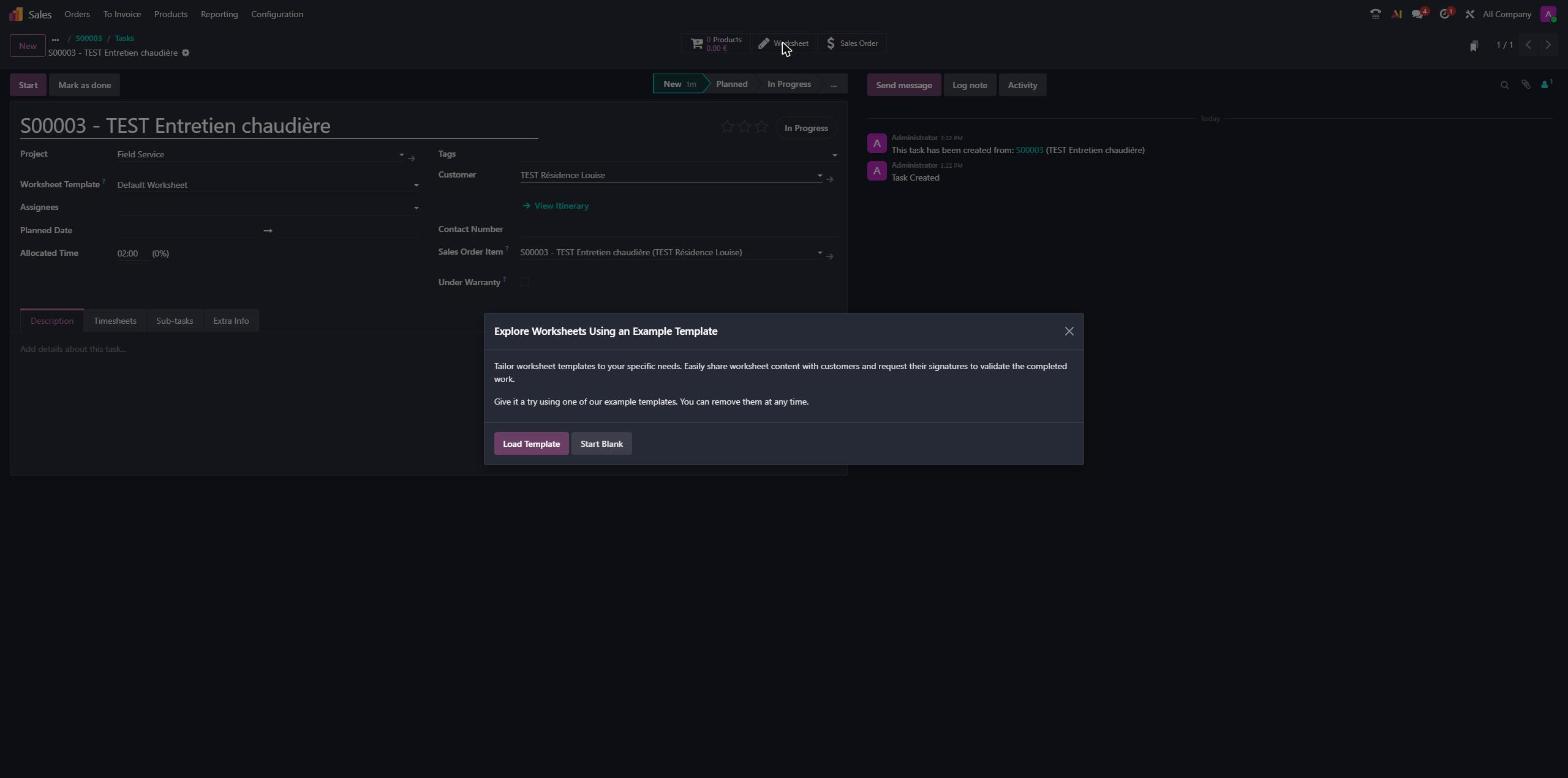
The task has a “Worksheet” button that opens a separate form, to be designed with Studio (“Load Template / Start Blank” wizard).
The worksheet is a tab of the shift, built with property fields, without using Studio. The “Device Installation and Maintenance” template contains the Device, Intervention, Checks and Sign-off blocks. The worksheet template is chosen on the product; according to the release notes, it can also be added to shift templates.

- Belgian use case
- When servicing a boiler, the technician ticks the visual inspection, the operating test and the safety test, then collects the customer's signature, without leaving the job.
- Source
- Odoo 20 release notes, Planning section, “Field Service: worksheets”. Official Odoo video, 6:47 ↗–7:13.
- What Idealis brings
- Existing Studio worksheet templates carried over to property fields during the migration.
Planning
A single job can involve several technicians
The Field Service task accepts several assignees (users), but appears only once in the schedule.
The shift's “Resources” field accepts several technicians. The shift appears on each technician's row, and the allocated time is multiplied by the number of resources (2 h for one technician, 4 h for two).


- Belgian use case
- Installing a heat pump requires two technicians: a single shift books both of them, and each one's workload is correctly counted.
- Source
- Odoo 20 release notes, Planning section, “Multiple resource assignment”. Official Odoo video, 3:36 ↗–3:49 and 12:23.
A shift can be linked to a project task
No link between a Planning shift and a project task is described for Odoo 19.
According to the release notes, a shift can be assigned to a specific task of a project.
- Belgian use case
- An engineering firm books a day of its engineer for the “Site survey” task of its project in Uccle.
- Source
- Odoo 20 release notes, Planning section, “Link shifts to tasks”.
Project
Actual and forecast margins in dedicated reports
The Project Reporting menu contains “Tasks Analysis” and “Customer Ratings”. Profitability was read in the project dashboard.
The dashboard's profitability report is removed. The Reporting menu adds “Margins” and “Forecast Margins”. The “Margins” pivot table breaks costs down by project, for example those of the timesheets of a fixed-price project.


- Belgian use case
- The manager of an engineering firm compares, every month, the actual and planned margin of its heating, ventilation and air conditioning (HVAC) projects, in a single filterable report.
- Source
- Odoo 20 release notes, Project section, “Profitability report”. Official Odoo video, 17:45 ↗–18:31 and 20:08–20:36; keynote, 1:22:49 ↗–1:23:28.
The customer can access the project without having to follow it
Visibilities “Invited internal users” and “Invited internal users and portal users”: access goes through following the project.
Visibilities “Team members only” and “Team members and invited portal users”, with an “Invite portal users” link. According to the release notes, collaborators are separated from followers, and tasks are assigned to portal users who follow the project.
- Belgian use case
- An engineering firm gives the client (project owner) access to the project in their portal, without overloading them with notifications, and assigns them the task “Validate the plans”.
- Source
- Odoo 20 release notes, Project section, “Collaborators separated from followers” and “Assign tasks to portal users”. Official Odoo video, 12:57 ↗–13:34, 14:10 and 21:50.
Project roles assigned from a template
The “New” button opens a simple project form, with no choice of template.
The “New” button offers project templates (Kitchen Assembly, Product Launch Campaign, Sales Order…). According to the release notes, team members are assigned to each project role.


- Belgian use case
- An installation company creates each site project from its template: the site manager and the draughtsperson are already assigned.
- Source
- Odoo 20 release notes, Project section, “Assign project roles”. Official Odoo video, 8:53 ↗–9:09.
A project can be created from the opportunity
The opportunity's Actions menu does not contain project creation: the project is born from the confirmed order.
Actions › “Create Project” opens a wizard with the choice of project template. The project can therefore start before the order.


- Belgian use case
- An engineering firm starts the HVAC study of a building in Uccle as soon as the verbal agreement is given, from the opportunity, without waiting for the purchase order.
- Source
- Odoo 20 release notes, Project section, “Projects from opportunities”. Official Odoo video, 1:44 ↗–2:30.
Timesheets
Workstation activity feeds timesheet suggestions (ActivityWatch)
No assistant: the Timesheets settings offer no activity tracking.
“Timesheets Assistant” setting and “Assistant” menu: the day's billable and non-billable hours, alongside suggestions from the ActivityWatch software installed on the workstation (“Install our activity tracker…”, “Test Connection”). According to the release notes, the data stays private.


- Belgian use case
- At the end of the day, a consultant finds their time suggestions per client and validates them quickly, instead of reconstructing the day from memory.
- Source
- Odoo 20 release notes, Timesheets section, “ActivityWatch integration”. Official Odoo video, 1:26 ↗–2:39; keynote, 1:25:35 ↗–1:29:12.
The timesheet assistant is configured with rules, duration thresholds and side activities
No assistant (see ActivityWatch above).
According to the release notes, an assistant rule can be shared with everyone, with certain users or groups, or remain private. A rule can also be defined as a “Side Activity” for short interruptions, and each rule has a duration threshold.
- Belgian use case
- A firm shares the rule “Teams meetings = client X” with the whole team and ignores message checking of less than 2 minutes.
- Source
- Odoo 20 release notes, Timesheets section, “Timesheet assistant: sharing rules”, “Timesheet assistant: side activities” and “Timesheet assistant: time thresholds”. Official Odoo video, 10:52 ↗–12:54.
Minor new features
Field Service
- Field service requests via website form
- Confirmation email when a shift is published, with the choice of whether to send it
- Customer ratings at the end of the job
- Adding products by barcode
- Studio fields in the job report
Planning
- Equipment assigned to an employee, added to their shifts
- Travel time in the Gantt via Mapbox
- Plan from the side panel
- Sending the schedule via WhatsApp
- “Timeline” menu: map, Gantt and panel combined on a single screen
Project
- Chatter change tracking in the portal
- Task schedule printable from the Gantt
- Redesigned task header on mobile
- Visibilities “Team members only” and “… and invited portal users”
- Link between task and draft quotation
- “Time by stage” and “Project actuals” reports
Gantt and views
- Gantt “Planning” side panel
- Durations editable with “+=2”, “-=”, “*=”, “/=”
- Clicking a row or column selects the cells
- Start and end margins in the Gantt
- Calendar view side panel
- Map view: records without an address
Timesheets
- Invoicing targets versus billable time in the dashboard
- Billable rate, reminders, integrated time off, team validation
See also
- Fleet and Belgian payroll: see HR & Payroll.
- End of the Planning–Payroll integration: see HR & Payroll.
- AI project creation: see AI & Agents.
- Services & Materials and re-invoicing: see CRM, Sales & VoIP (Sales minor new feature “Services & Materials”).