Odoo 20 · AI & Agents
With Odoo 20, AI agents no longer just answer: they create and edit records, run automatically on a schedule or on an event, and can update their own instructions. AI runs on Odoo credits, with no API key from a provider. Odoo also becomes accessible to external assistants through the MCP protocol (Model Context Protocol). For reporting, access to dashboards can be restricted to designated users, and the spreadsheet offers calculated columns, named ranges and pivot tables with richer presentation options.
Contents: 12 feature sheets
- Odoo AI runs on credits, with no API key from a provider
- An agent can update its own instructions
- Agents run automatically, on a schedule or on an event
- The agent creates and edits records after the user’s authorisation
- External AI assistants connect to Odoo through MCP
- Helpdesk detects similar tickets
- An AI assistant creates and edits website pages
- Access to a dashboard can be restricted to designated users
- Lists inserted into the spreadsheet accept calculated columns
- The spreadsheet now offers named ranges
- Pivot tables have a tabular view and presentation styles
- A print preview lets you adjust the page layout
AI and agents
Odoo AI runs on credits, with no API key from a provider
The “Odoo Agent” runs on a chosen model (GPT-4o by default) and the provider’s API key. Settings offer “Use your own ChatGPT account” and “Use your own Google Gemini account”. Without a key, the message is rejected: “No API key set for provider 'openai'”.
The AI section no longer appears in Settings and the agent form no longer shows a model or a key. According to the release notes, all AI features now require credits, bought through Odoo’s in-app purchases (In-App Purchase, IAP). The “Odoo AI” service appears in the database’s in-app purchases.
- Belgian use case
- A Brussels SME activates AI without opening an account with OpenAI or Google: it buys Odoo credits and tracks its consumption in the same place as its other services (SMS, document digitisation).
- Source
- Odoo 20 release notes, AI section, “IAP credits required”. Official Odoo video, 12:20 ↗.
- What Idealis brings
- Idealis’s AI Provider module, for customers who want to keep their own model provider.
An agent can update its own instructions
Classic agent form: name, model, response style, topics (Topics), system prompt and sources. No tools, no self-update option.
The agent opens in a conversation screen, with a panel of four tabs: Instructions, Skills, Knowledge, Triggers. The Skills tab lists tools that can be enabled: “Generate Image”, “Web Search” and “Self Update” (disabled by default). According to the release notes, the agent can thus update itself to better serve its use case.


- Belgian use case
- Example: the agent that prepares replies to the customers of a Liège wholesaler remembers, after being corrected, that it must always state the 30-day payment term.
- Source
- Odoo 20 release notes, AI section, “Agentic automation” (“Agents can now update themselves to best serve their use cases.”). Official Odoo video, 13:04 ↗ to 15:31.
Agents run automatically, on a schedule or on an event
An automation rule can contain an “AI” type action, with a prompt (“AI Action Prompt”) and tools. It does not designate an agent.
The automation rule has an “AI Agent” field. Its tooltip states that the agent’s tool calls are automatically confirmed and that each run is kept in a chat for inspection. The agent’s “Triggers” tab offers four triggers: “On a Schedule”, “Based on a Date Field”, “After Creation” and “After Update”. The technical menu includes a new “Scheduled Actions Triggers” menu. According to the release notes, the automated chats then make it possible to check how the agents handled the requests.


- Belgian use case
- Example: every Monday at 8 a.m., an agent reviews the open tickets of an Antwerp services company and prepares a summary for the manager.
- Source
- Odoo 20 release notes, AI section, “Agentic automation” (“Agents can be summoned by automated and scheduled actions.”; “Check automation chats to see how agents handled them”). Official Odoo video, 15:43 ↗ to 16:47.
- What Idealis brings
- AI Factory, an Idealis offering, designed to build agents and their triggers.
The agent creates and edits records after the user’s authorisation
The standard agents (“Odoo Agent”, “Ask AI”) show no create or update skill.
The “Odoo AI” agent lists the “Create Records” and “Update Records” skills. According to the release notes, it can be asked to create any record, including from an instructions file such as a PDF, and to update records. The agent asks its questions, requests authorisation and makes its suggestions as buttons.
- Belgian use case
- Example: a user asks the agent to create the contact for a Brussels brewery; the agent asks for authorisation before creating the record.
- Source
- Odoo 20 release notes, AI section, “AI agents: create records”, “AI agents: update records”, “Interactive agent responses”. Official Odoo video, 5:14 ↗ to 8:33 (interactive responses: 6:01 to 7:05).
External AI assistants connect to Odoo through MCP
No mention of MCP in Settings. A server action can be used by AI (“Use in AI”, “AI Schema”), but not exposed to an external client.
Settings > Integrations: “MCP OAuth” block. Only AI clients whose metadata URL appears in this list can obtain an access token; the list already contains URLs for ChatGPT, Claude and Grok. An “Allow Dynamic Client Registration (DCR)” checkbox, unticked by default, allows any client to register. In a server action, the “Available in MCP” checkbox is added alongside “Use in AI” and comes with a tool name and a description. According to the release notes, the connection to the database is made through MCP.


- Belgian use case
- Example: the manager of a Namur SME queries their sales from their usual AI assistant, and the “Create a follow-up” server action is offered to it as a tool.
- Source
- Odoo 20 release notes, AI section, “Connect Odoo to anything” (“Connect to your database via MCP (model context protocol).”). Official Odoo video, 24:40 ↗ to 25:33; keynote, 2:26:48 ↗.
- What Idealis brings
- Idealis’s MCP modules.
Helpdesk and Website
Helpdesk detects similar tickets
The helpdesk team has no AI settings and the ticket shows nothing of the kind.
The helpdesk team has an “AI” section with the “Look for Similar Tickets” checkbox. Once ticked, three settings are offered: the search period (“Include Tickets from”, “Forever” by default), the agent (“Odoo AI”) and the similarity threshold (“Similarity Threshold”, 0.45). When a ticket is opened, a “Searching…” indicator appears. According to the release notes, similar tickets are detected using AI and are used to suggest replies.


- Belgian use case
- Example: when a ticket “Belgian VAT invoice not received – Brussels customer” is opened, the helpdesk team sees related tickets, such as “Invoice with 21% VAT not found”.
- Source
- Odoo 20 release notes, Helpdesk section, “Similar ticket detection”. Official Odoo video (Helpdesk), 7:33 to 10:57 (setting: 7:56 to 9:28).
An AI assistant creates and edits website pages
The website editor bar (undo, redo, mobile, Discard, Save) includes no AI assistant.
An AI icon opens the “AI Website Assistant” panel, with the prompts “Help me create a new page” and “Improve my page”. It relies on the “Website Builder” agent (skills Customize Website, Website JavaScript, Webforms). According to the release notes, it creates pages, creates or edits web forms, edits the menu, targets a block with “Select Elements”, generates or adds images, and replicates a page from its URL. According to the official video, the assistant does not create dynamic pages and does not perform bulk translation.


- Belgian use case
- Example: an accounting firm in Brussels asks for a “Contact” page with an appointment form, then adds the page to the menu.
- Source
- Odoo 20 release notes, Website section, “AI Website Assistant”. Official Odoo video (Website), 17:05 to 26:18; limitations 29:59 to 30:18.
Dashboards and spreadsheet
Access to a dashboard can be restricted to designated users
Access to a dashboard is set by user group (“Group” column of the section).
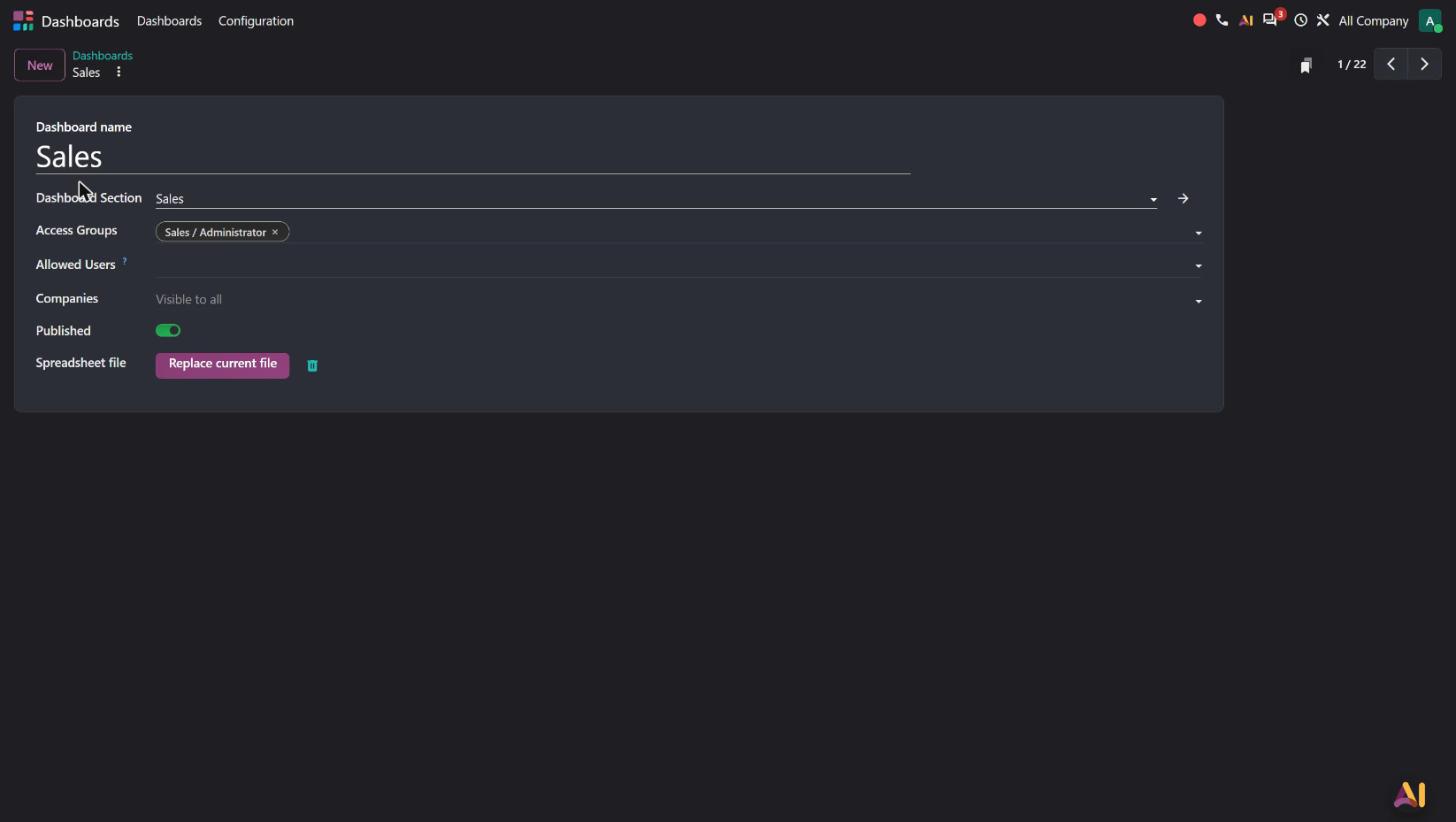
Each dashboard has its “Access Groups” and “Allowed Users” fields (“Users allowed to access this dashboard”). The configuration offers three menus: Dashboards, Sections and Share links. According to the release notes, it is possible to create private dashboards and restrict access to them to designated users.


- Belgian use case
- Example: the margin dashboard of a Ghent SME is visible only to the managing director and the accountant.
- Source
- Odoo 20 release notes, Dashboards section, “Private dashboards”.
Lists inserted into the spreadsheet accept calculated columns
In the panel of an inserted list, columns are displayed as plain text: it is not possible to add or hide any.
The panel has an “Add” button and, for each column, one icon to hide it and one to delete it. “Add calculated column” creates a column with its own formula.


- Belgian use case
- Example: adding to the pipeline list an “Amount incl. VAT” column (amount × 1.21).
- Source
- Odoo 20 release notes, Spreadsheet section, “Calculated columns” (“It is now possible to add calculated columns in dynamic lists.”). Official Odoo video, 5:05 ↗.
The spreadsheet now offers named ranges
The Data menu has no “Named ranges”.
Data > “Named ranges” opens a “+ Add a new named range” panel. According to the release notes, these labels, associated with cells or ranges, can then be used in formulas.


- Belgian use case
- Example: a “VAT_Rate” range set to 21% used in all the formulas of a budget.
- Source
- Odoo 20 release notes, Spreadsheet section, “Named range”. Official Odoo video, 24:01 ↗.
Pivot tables have a tabular view and presentation styles
The pivot table panel is presented on a single screen: columns, rows, measures and domain.
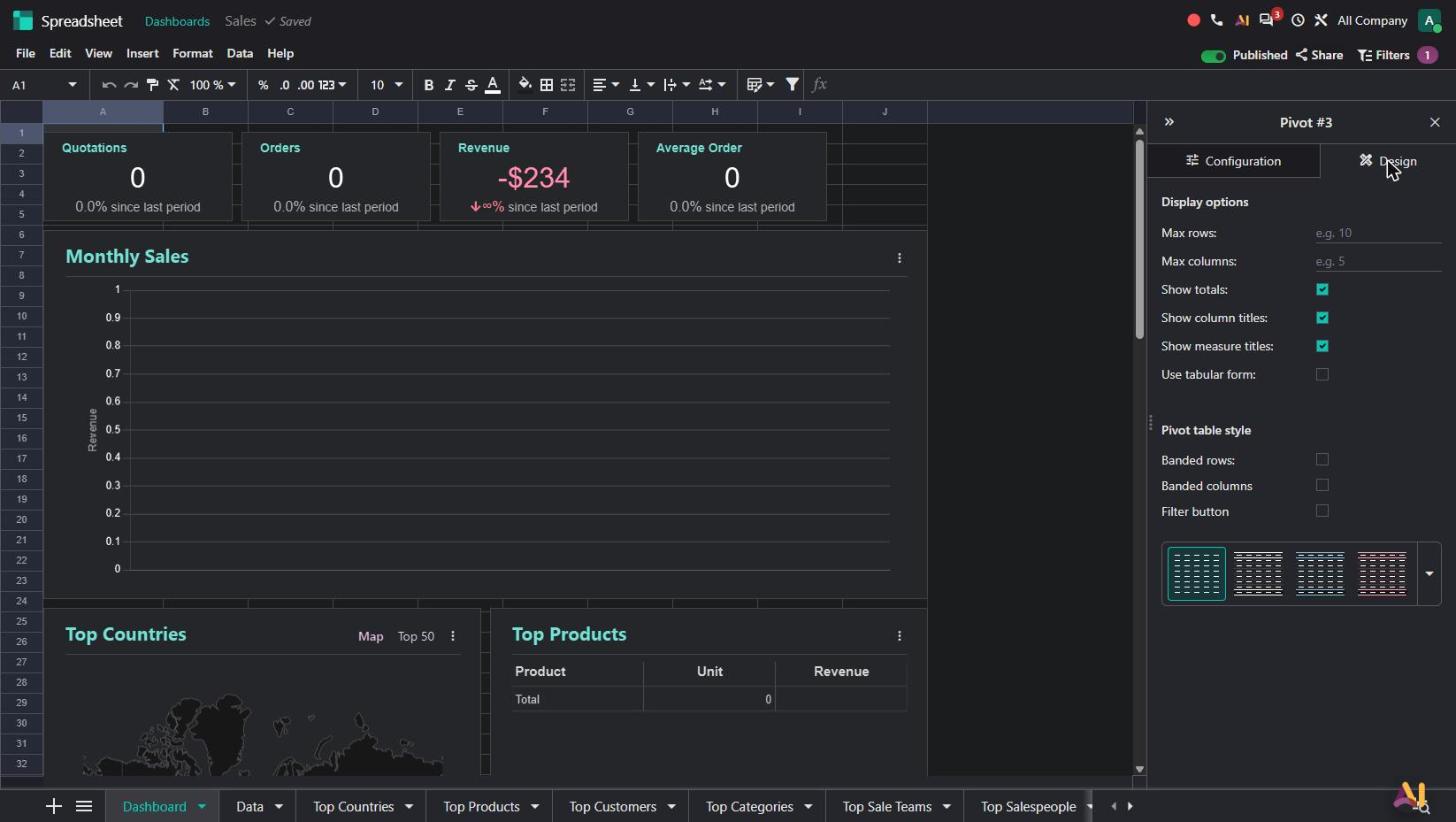
The panel has two tabs, “Configuration” and “Design”. “Design” offers the maximum number of rows and columns, totals, titles, the “Use tabular form” option and a gallery of styles (banded rows and columns, filter button). According to the release notes, it is also possible to add a domain to a pivot table built from a range of cells.

- Belgian use case
- Example: a pipeline pivot table by stage, shown in tabular view with a style that matches the company’s brand guidelines.
- Source
- Odoo 20 release notes, Spreadsheet section, “Pivot tables”. Official Odoo video, 6:57 ↗ and 12:17.
A print preview lets you adjust the page layout
The File menu contains “Print”.
File > Print opens a “Print Preview” within Odoo: content to print, scale (“Fit to width”), paper (A4), orientation, gridlines.
- Belgian use case
- Example: printing the annual budget on A4 landscape, fitted to width.
- Source
- Odoo 20 release notes, Spreadsheet section, “Print settings”. Official Odoo video, 24:31 ↗.
Minor new features
Agents
- “Topics” become “Skills”
- Agent avatars based on their role
- Agent offered as the default agent of a model
- Real-time updates on the agent’s actions
- Reprocessing of sources on demand
- Time period filter in views created by the agent
- Generation of images and buttons for websites and marketing emails
- Tool call limit confirmation
- AI agent for renegotiating purchases
AI chat
- Sending files and linking documents
- Questions about a file while previewing it
- + menu to add options to a request
- Voice dictation
- Conversations stored for 30 days after the last message
- Dynamic values in default prompts
Live chat
- Clickable cards when the agent mentions a record
Helpdesk
- AI search bar in the help centre
Website
- AI-generated content indicator in the editor
Knowledge
- Article settings via right-click
Dashboards
- Favourite filters and default global filter
- Carousel data layer, adapted to mobile
- Fiscal year date filter
- Frozen share links managed in a dedicated menu
- Region selector for geographic charts
Spreadsheet
- Locking of entire sheets
- Column statistics
- Disabling of automatic recalculation and manual recalculation with F9
- List insertion: adding a dynamic list directly from a spreadsheet
- Zoom in/out on the spreadsheet
- New functions: CHOOSE, DROP, FORMULATEXT, TAKE, statistical functions and ARRAYTOTEXT; REGEXTEST and REGEXREPLACE formulas
- Template access limited to user groups
- Custom formats for dates and numbers
- Background colour of an entire sheet
See also
- AI-based financial analysis: see Finance & Accounting.