← Odoo 20: all the new features
Finance & Accounting
The PCMN (Belgian standardised minimum chart of accounts) is structured in parent accounts, invoices and orders can be entered excl. VAT or incl. VAT, and bank lines are allocated in batches. The Belgian VAT return is checked before it is filed, suppliers can be paid from Odoo, and expense claims are capped by job position and reimbursed through payroll.
- Chart of accounts
- Invoices and orders
- Customer invoices
- Vendor bills
- Bank reconciliation
- Payments
- Belgian VAT
- Reports
- Expense claims
- Fixed assets
- Minor new features
Contents: 15 feature sheets
- The PCMN is structured in parent accounts
- Entering invoices and orders excl. VAT or incl. VAT, and invoice review
- Customer reminders are scheduled from invoicing
- The vendor bill is matched to the purchase order, with a matching rate
- Vendor bill lines are pre-filled from history
- Bank lines are allocated in batches
- Suppliers are paid from Odoo, withholding tax included
- Payment statuses show how far the payment has progressed
- The Belgian VAT return is checked before filing
- Taxes are limited to those of the applicable fiscal position
- The income statement can be expressed as a percentage of revenue
- The dashboard shows key amounts as soon as it opens
- Expense claims are capped by job position and reimbursed through payroll
- Expense claims generate purchase receipts to be checked
- Fixed asset setup is done on the accounts
Chart of accounts
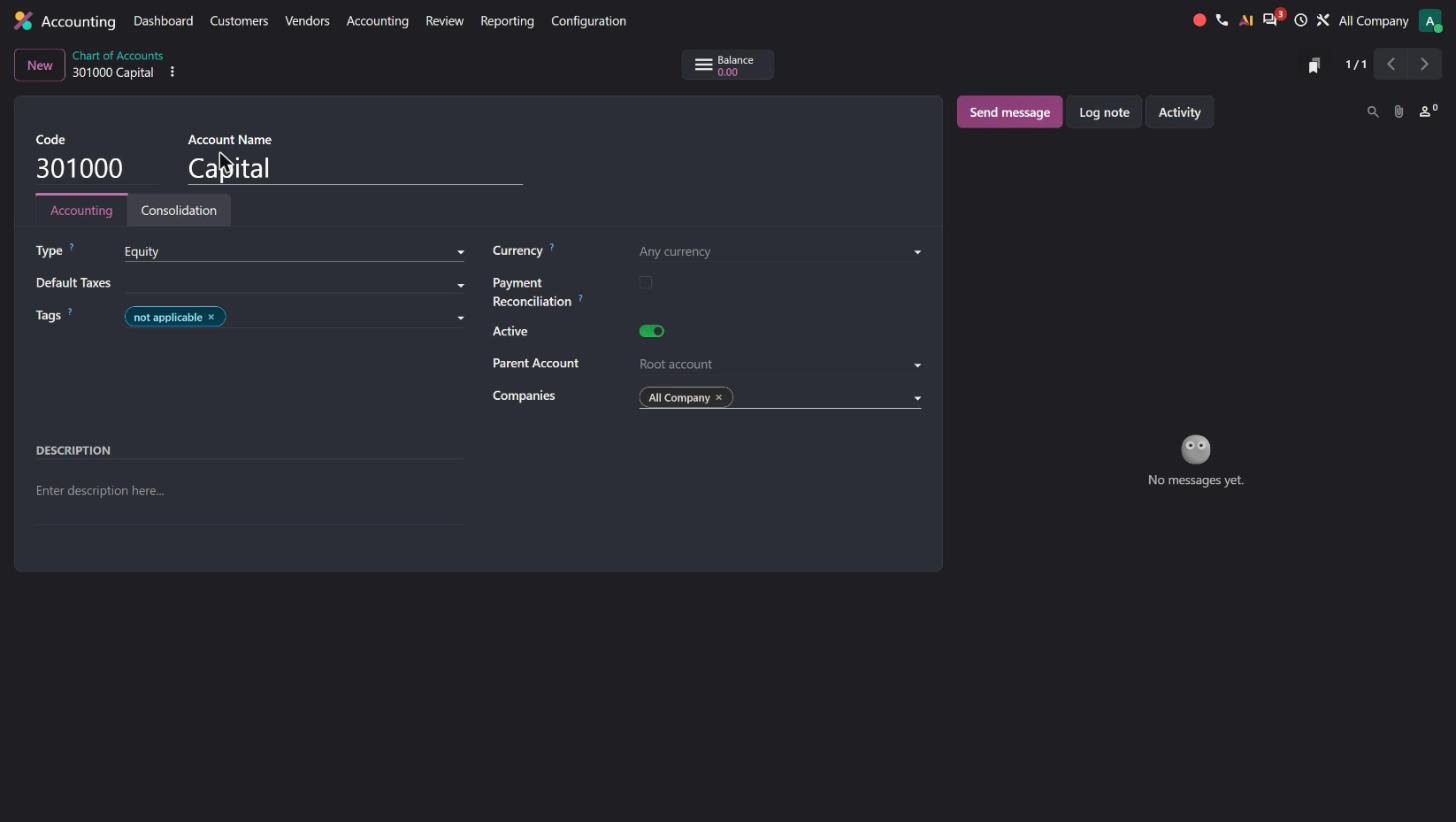
The PCMN is structured in parent accounts
The hierarchy of the chart is based on account groups defined by code ranges. The account code is mandatory. The account form has a “Mapping” tab.
Each account can point to a parent account (“Parent Account” field): the chart takes the form of a tree. The account code is optional. The “Mapping” tab becomes “Consolidation”.

- Belgian use case
- Structure the PCMN by classes and sub-classes (1 > 10 > 100000) without maintaining group ranges, and group the balance sheet items or those of a Belgian subsidiary to be consolidated. During migration, check how groups are carried over into parent accounts.
- Source
- Odoo 20 release notes, Accounting section, “Parent accounts”.
- What Idealis brings
- Chart of accounts carried over as part of the Idealis migration: functional workshop by business line (“Audit & Analysis” phase), then verification by Idealis before client acceptance (“Idealis Testing”).
Invoices and orders
Entering invoices and orders excl. VAT or incl. VAT, and invoice review
No excl./incl. VAT toggle on the lines. Review statuses exist only on the VAT return; the document itself has only a “checked” tick. “Purchase Matching” button with no indicator.
A “Tax Excl. / Tax Incl.” toggle above the lines makes it possible to enter the amount as it appears on the document, without changing the product or the tax. According to the release notes, this toggle also applies to sales orders, purchase orders and invoices, and a given tax can be configured not to follow this setting. The review statuses “No Review / To Review / Reviewed”, previously reserved for the VAT return, apply to invoices and to all accounting documents.


- Belgian use case
- Enter a restaurant or fuel receipt as printed, VAT included, at the Belgian rates shown on the document. The accountant marks documents “To Review” and checks them before the VAT return.
- Source
- Odoo 20 release notes, general section, “Tax included/excluded on orders and invoices”. Review status: no text in the release notes. Official Odoo video: 5:09 ↗ to 5:15 (excl./incl. VAT toggle) and 9:43 to 10:01 (review statuses, which in V19 exist only on the VAT return). See also: CRM, Sales & VoIP (Sales minor feature) and Manufacturing & Inventory (Purchase minor feature) refer to this sheet.
- What Idealis brings
- Training accountants in entering amounts incl. VAT and reviewing documents, in the “Continuous Improvement” phase (training & post-go-live) of the Idealis migration method.
Customer invoices
Customer reminders are scheduled from invoicing
The “Follow-up Levels” menu offers the Letter and Automatic columns. The invoice list has no “Last Reminder” column and the settings offer no automatic reminder option. According to the official video (10:25 ↗), reminders are sent from the customer list.
Manual reminders are sent from the invoice list or with the “Send” button on the invoice. Automatic reminders are enabled and managed in the Accounting settings. The reminder workflow, manual or automatic, is simplified.


- Belgian use case
- An SME chases its overdue invoices from the invoice list, on an automatic schedule defined once.
- Source
- Odoo 20 release notes, Accounting section, “Customer invoice reminders” and “Reminder workflow”. Official Odoo video: 10:19 ↗ to 11:08.
- What Idealis brings
- Reminder setup using the Evolucare EVOLU time credit.
Vendor bills
The vendor bill is matched to the purchase order, with a matching rate
“Purchases” button to the purchase order, with no indication of the degree of matching. The “Auto-Complete” field already exists: it takes the received quantities from the purchase order, without flagging a discrepancy when the invoiced quantity differs.
“PO Matching x %” button on the bill and “Bill Matching x %” on the purchase order. The “Purchase Matching” summary shows what is matched and flags quantity discrepancies (“Qty to invoice” column). The rate counts matched lines, not quantities. According to the release notes, price discrepancies are also flagged and the matching can be undone.
- Belgian use case
- Check purchase order, receipt and bill before the SEPA payment at a Belgian industrial client, to reduce supplier disputes and credit notes.
- Source
- Odoo 20 release notes, Accounting section, “Purchase order matching”. Official Odoo video (“What's new in Purchase & replenishment?”), 16:40.
- What Idealis brings
- Verification of standard purchasing flows by Idealis before delivery, then acceptance testing by key users (“Idealis Testing” and “Client Testing” phases).
Vendor bill lines are pre-filled from history
For a recurring supplier, an empty line or a label already receives the account (for example 600000) and the tax (for example 21% EX M) drawn from history, but not the product.
When a bill is entered manually or imported, Odoo suggests the product, account, tax, analytic distribution and vehicle based on bill history and the label. Values already entered by hand are kept.
- Belgian use case
- Recurring bills (energy, telecoms, vehicle leasing) are pre-allocated, including the vehicle for tracking car costs.
- Source
- Odoo 20 release notes, Accounting section, “Bill line prediction”.
- What Idealis brings
- Training accountants in assisted entry in the “Continuous Improvement” phase (training & post-go-live).
Bank reconciliation
Bank lines are allocated in batches
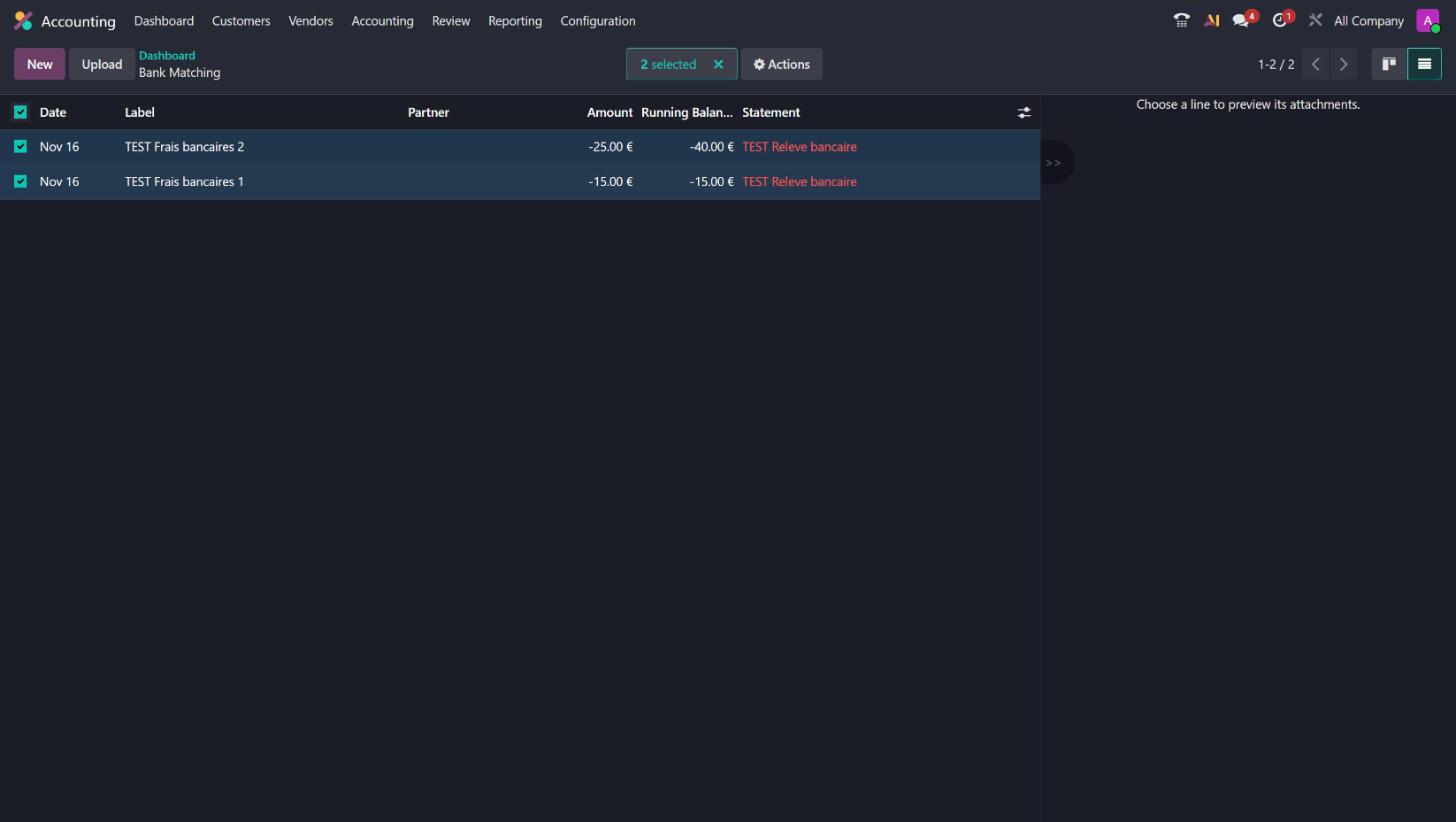
In the list of transactions to reconcile, multiple selection opens only the “Actions” menu: each line must be processed individually.
The “Bank Matching” list view makes it possible to select several transactions and assign a partner or an account to them in a single operation (“Set Partner”, “Set Account”), then validate them together.

- Belgian use case
- Allocate bank charges, interest or recurring rent from a CODA statement in a single operation, for example all office rent to account 610000. An SME's month-end close is faster as a result.
- Source
- Odoo 20 release notes, Accounting section, “Optimized data entry” (batch processing of statement transactions). Official Odoo video: 20:11 ↗ to 20:23 (announcement), 23:52 to 23:58 (demonstration) and 27:17 (partner assigned in bulk).
- What Idealis brings
- Month-end close optimisation with Evolucare EVOLU (monthly time credit dedicated to improvements).
Payments
Suppliers are paid from Odoo, withholding tax included
No equivalent function is described for Odoo 19.
On an invoice subject to withholding (tax code “2% WTH” in the video), the amount due is broken down into “Amount Due”, “Withhold Due” and “Net Due”. The payment wizard offers “Withhold and Pay”, “Withhold Only” or “Payment Only”, then “Pay Now” or “Sign Later”: the payment is initiated with the connected bank (payment initiation service provider, PISP), individually or in a batch, with a single signature.
- Belgian use case
- Pay suppliers without exporting a SEPA file to Isabel or the bank portal, provided the client's bank is accessible via PISP. Withholding tax affects few cases in Belgium; it must be assessed client by client.
- Source
- Odoo 20 release notes, Accounting section, “Pay bills from Odoo” and “Withholding tax on payment improvements”. Official Odoo video (“What's new in Accounting?”), 22:42 ↗ to 23:07.
Payment statuses show how far the payment has progressed
According to the release notes: “In Process” status, then “Paid”; manual “Mark as Reconciled” button outside the Action menu.
“Paid” status, then “Reconciled”. The “Mark as Reconciled” button moves into the Action menu, to encourage reconciliation with the bank statement. The payment wizard detects pending “Paid” payments, deducts them from the amount due and sorts open payments by date. In the payment list, the status filters are “Draft”, “To Sign”, “Paid”, “Rejected”, “Outstanding” and “Not reconciled”.
- Belgian use case
- A SEPA transfer that has been sent appears as “Paid”; it becomes “Reconciled” when the CODA statement is reconciled. In between, the wizard helps avoid a second payment of the same invoice. The change in the meaning of the “Paid” status needs to be explained to users during migration.
- Source
- Odoo 20 release notes, Accounting section, “Intuitive payment status” and “Prevent double payments in the payment wizard”.
- What Idealis brings
- Training needs identified from the audit onwards (change management), then training after go-live.
Belgian VAT
The Belgian VAT return is checked before filing
The VAT return flow offers 5 checks before submission.
The flow offers 6, including “Tax Reconciliation”, a pivot table of entries by fiscal position or country, tax and account, and “Tax codes & deductibility”, specific to Belgium. Inconsistent entries are flagged before filing.
- Belgian use case
- Before filing on Intervat, check grid 57 (import VAT, accounts 451057 and 411000), limited deductibility (cars 50%, restaurant expenses 0%) and the consistency of intra-EU and non-EU fiscal positions.
- Source
- No text in the release notes, either in Accounting or in the Belgium section. Official Odoo video: 25:56 ↗ to 26:08 (announcement) and 27:57 to 28:14 (demonstration of the “VAT reconciliation report”).
- What Idealis brings
- Verification of VAT flows by Idealis before delivery (“Idealis Testing” phase).
Taxes are limited to those of the applicable fiscal position
With the Intra-Community fiscal position, an item's 21% tax is replaced by “0% EU M”. A tax set by hand outside the position (21% D50) stays on the line. An item with no tax receives none.
A tax is allowed only in its own fiscal position. If the default tax of an item or account does not belong to the invoice's fiscal position, it is removed from the line, even with no replacement tax.
- Belgian use case
- A Belgian SME invoices a company in another Member State. If the intra-EU fiscal position provides no mapping for the item's 21% tax, the line is issued with no tax. The fiscal position mappings (intra-EU, non-EU, contractor) must be checked before migration.
- Source
- Odoo 20 release notes, Accounting section, “Taxes in fiscal positions”.
- What Idealis brings
- Fiscal position checks during the functional audit (“Audit & Analysis” phase) and verification before delivery (“Idealis Testing”).
Reports
The income statement can be expressed as a percentage of revenue
The “Comparison” filter in financial reports compares periods only.
The “Comparison” filter offers “Percentage of”: each report line is expressed as a percentage of a chosen reference line.


- Belgian use case
- Read the gross margin (9900) and operating result (9901) of the PCMN scheme as a percentage of revenue, for the manager or the bank, without exporting to Excel.
- Source
- No text in the release notes. Official Odoo video (“What's new in Accounting?”): 32:25 ↗ to 32:39 (announcement) and 33:32 to 33:44 (demonstration, revenue at 100%).
- What Idealis brings
- Setting up management reports using the Evolucare EVOLU time credit.
The dashboard shows key amounts as soon as it opens
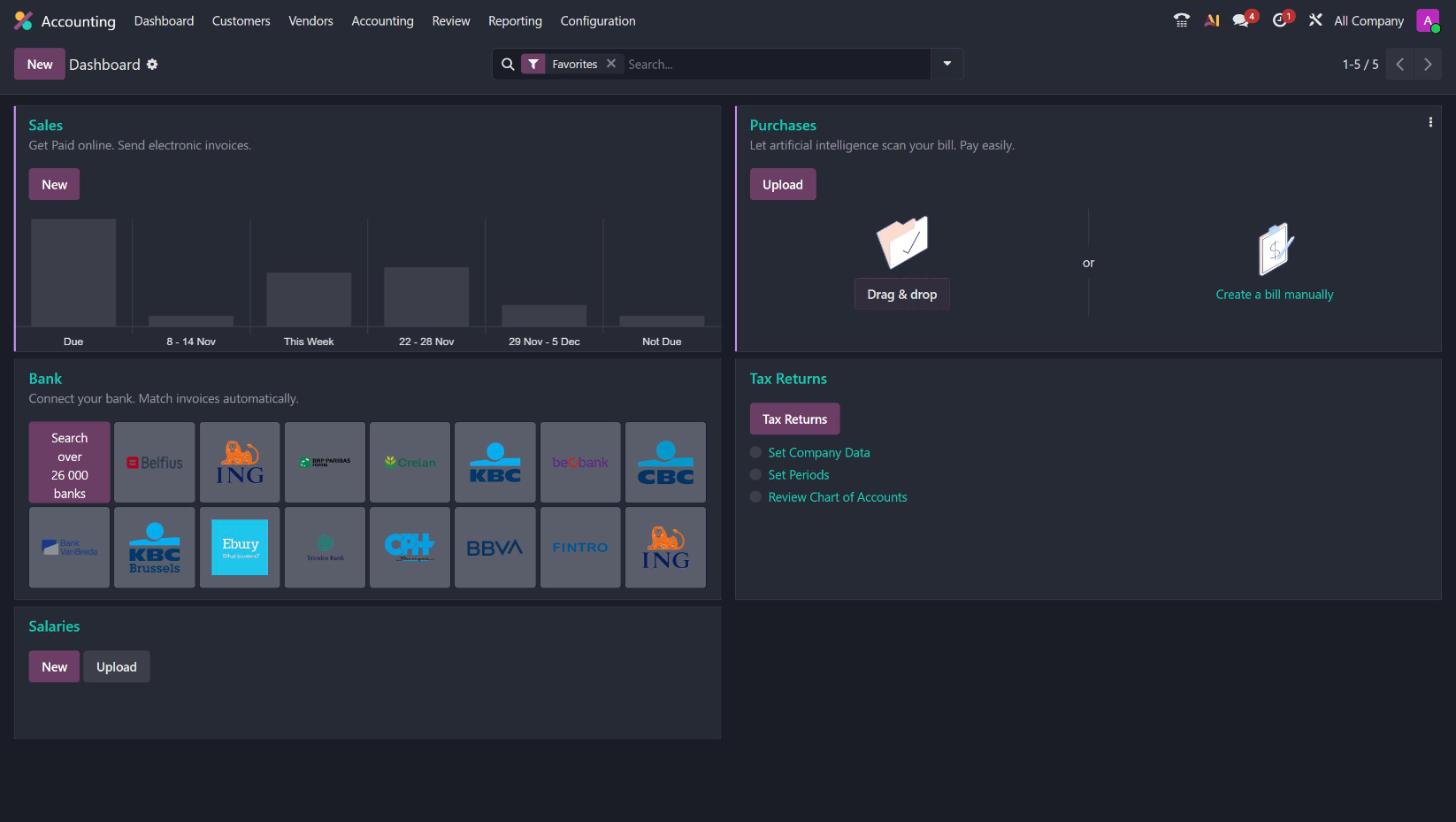
The Accounting dashboard shows only the journal cards (sales, purchases, bank, returns).
A row of clickable cards (Invoices, Expenses, Cash, Receivable, Payable) is displayed above the journals; each opens the corresponding report or list.

- Belgian use case
- An SME manager has a summary view of receivables, payables and cash, for example the supplier balance before SEPA payments are launched.
- Source
- No text in the release notes. Official Odoo video: 4:47 ↗ to 4:54.
- What Idealis brings
- Training users on the dashboard in the “Continuous Improvement” phase (training & post-go-live).
Expense claims
Expense claims are capped by job position and reimbursed through payroll
“Expense Categories” carry only invoicing settings: no cap, no link with payroll.
“Expense Products” carry caps by job position (LIMITS section): the approver can reduce the expense to the authorised amount before approval. They can be linked to salary rules (PAYROLL section) for reimbursement on the payslip. An expense claim can be linked to an existing vendor bill, to avoid the cost being counted twice.
- Belgian use case
- Apply an expense policy with a meal cap per job, reimburse the employer's own expenses on the payslip, and attach a restaurant receipt to the bill already received by the company.
- Source
- Odoo 20 release notes, Expenses section, “Expense limits per job position” and “Salary rules for expense products”. Link to an existing bill: no text in the release notes. Official Odoo video: 11:46 ↗ to 12:13 (cap by job position and by product) and 12:44 to 13:03 (link to a bill). At 5:21, the video mentions a limit “for each employee”; the release notes, which prevail, refer to job position. See also: HR & Payroll, minor feature 24 (salary rules for expenses).
- What Idealis brings
- Expense policy framing during the functional workshop by business line (“Audit & Analysis” phase).
Expense claims generate purchase receipts to be checked
The approved expense claim remains without an entry; the “Post Journal Entries” button posts it. “Employee Expenses” menu under Vendors.
The menu is removed. On approval, Odoo automatically generates a draft purchase document; the accountant checks it and validates it with the other vendor documents. The generated document is a purchase receipt (“Draft Purchase Receipt”) in the employee's name, with the amount excl. VAT and the VAT broken down; the release notes present it as a vendor bill in the default expense journal.
- Belgian use case
- The accountant checks employee expenses in the same place as supplier receipts, including deductible VAT, before the VAT return. Complements the sheet on expense claims capped by job position.
- Source
- Odoo 20 release notes, Accounting section, “Employee Expenses menu item”.
- What Idealis brings
- Framing of the expense claim flow into accounting during the functional workshop by business line.
Fixed assets
Fixed asset setup is done on the accounts
Asset models carry the accounts, method and duration (for example “Office Furniture and Equipment”: accounts 240000, 240009 and 630200, 5 years). Account 240000 has only an “Automation” tab that refers to the model.
Asset models are replaced by depreciation models, limited to the calculation logic. The essential information and the automations are on the asset accounts themselves.


- Belgian use case
- Set up once, on the class 2 accounts of the PCMN, the treatment of an SME's investments, then leave the depreciation model to handle the duration or rate. During migration, check how the old models are carried over.
- Source
- Odoo 20 release notes, Accounting section, “Simplification of asset models”.
- What Idealis brings
- Carrying over asset models in the migration (“Migration & Odoo 20” phase: configuration and testing).
Minor new features
Accounting and closing
- Batch reset to draft from any list view (“Reset to Draft” action)
- Manual reconciliation possible on any account, including from the working folders; the “Allow Reconciliation” checkbox becomes “Payment Reconciliation”
- Analytic distribution on the differences created at reconciliation
- Deferred expenses and revenues: start and end dates mandatory and deferral account defined on the expense account
- Hashing of cash journals at reconciliation
- Settings of the “accounting firms” mode relaxed
- Accounting onboarding centred on e-invoicing and taxes
- Annual report using the company's document layout
Invoices
- Vendor bill options (depreciation, vehicle, deferred payment) stacked under the account
- Zip download of the attachments of several invoices (PDF, XML)
- Documents from the Documents app or the chatter attached to the invoice email
- Sending method of each invoice shown during a bulk send
- Splitting of an invoice's accounting lines (multiple quantities, assets, several accounts)
Payments
- Conversion rate displayed when registering a foreign-currency payment
- Exchange differences grouped into one line per invoice, with expandable detail
- PAIN version of outgoing payments defined by payment method rather than by journal
- Invoice-payment matching rules with tolerance and reconciliation order
- Bank transfer payments are confirmed automatically based on bank transactions
Bank
- Any entry affecting a bank account must come from a bank transaction (Bank consistency)
- Bank reconciliation summary report at the period end date
- Manual re-run of automatic reconciliation (“Run Auto Reconciliation”)
Fixed assets
- Depreciation by duration or by rate, with decimals
- Assets in progress activated on a chosen date, with transfer from account 27 to account 22 and creation of the asset
- Sub-asset under a second framework (IFRS) alongside the local framework
Reports and consolidation
- Faster reports: smooth scrolling over thousands of lines, browser-side cache, snapshots computed at the lock date
- Cash flow analysis report (direct method): cash positions by journal, multi-company, cumulative or day by day
- “Interco Comparison” report
- Grouping possible on a calculated total line, which returned an error in V19
- Currency translation adjustment (CTA) line in the balance sheet, trial balance and general ledger
- Journals included, rather than excluded, in multi-ledger consolidation
- Automatic reconciliation of synchronised intercompany invoices and purchase orders
Belgian VAT
- VAT current accounts defined by return type rather than by tax group
Expense claims
- Consolidated report of several expense claims
Documents
- Bank statement attachments visible in Accounting and Documents; branches managed in the bridge between the two
AI and ESG (environmental, social and governance)
- Financial analyses by the AI assistant, based on accounting data only (IAP credits, Odoo's in-app purchases)
- Emission factor assignment by AI in ESG (IAP credits)